

How to connect Moterno to Google Calendar for maintenance reminders
Instead of manually checking your service history for what is due next, use your Moterno records to create Google Calendar maintenance events with notifications. This guide shows a manual handoff, not an automatic connection: your digital garage holds the vehicle’s history, and your calendar reminds you to act.
Why this matters
Remember when you last changed the oil? A receipt answers that question. A calendar event answers a different one: when should you check or book the next service?
Moterno is best for car owners who want a digital garage for service history, documents, photos, and stories. Google Calendar supplies the date-based reminder in this workflow. Moterno also has its own maintenance reminders by email, so the calendar handoff is for owners who prefer alerts where they already look. Keeping those roles separate prevents a future appointment from looking like completed maintenance.
| Tool | Best for | Useful role | Limitation in this workflow |
|---|---|---|---|
| Moterno digital garage | Owners keeping a vehicle’s documented history | Store service history, documents, photos, and stories | You must manually carry the relevant information into the calendar |
| Google Calendar | Owners who need date-based prompts | Schedule an event and notifications | A scheduled event does not prove that maintenance happened |
For your 2026 setup, start with one real maintenance task. Confirm that its notification works before adding the rest of your vehicles or service schedule.
Before you start
- Have access to both accounts. Open your digital garage and Google Calendar. The instructions below use Google Calendar in an English-language desktop browser; phone screens have different layouts.
- Gather the source information. Use the vehicle’s maintenance schedule, latest relevant service record, receipt, and current odometer reading. Choose the next date from the applicable schedule or documented workshop advice, not from a generic interval in an article.
- Check the non-obvious limitation: mileage does not trigger this workflow. A dated calendar event cannot detect that you have driven farther than expected. If maintenance depends on time or mileage, track both and act when the applicable limit arrives first.
Decide which calendar will hold the event. A private calendar is a sensible starting point because maintenance notes can contain personal information. Check sharing permissions before putting registration details, document references, or workshop information into an event.
Your maintenance source record
Find the record
- Open the relevant vehicle in your Moterno digital garage. Check that you are looking at the right car before copying any details.
- Find the latest completed service relevant to the task. Record its date, odometer reading, and the work described on the receipt or service entry.
- Compare that record with the vehicle’s maintenance schedule. Separate work already completed from work recommended for later.
- Write a short source note for the calendar description. Include enough context to identify the record without copying an entire receipt.
Expected result: You can explain what the next task is, why it is due, and which record supports it.
Use a plain note such as: “Last completed service: see the vehicle record and workshop receipt. Check the maintenance schedule before booking.” Add the actual service date and mileage when you have them.
Do not turn an uncertain recollection into a documented service. If you remember a repair but cannot find the paperwork, describe it as something to verify. An honest gap is more useful than a confident entry that a future owner mistakes for proof.
Choose the date
- Identify whether the task follows a calendar interval, a mileage interval, or both. Read the schedule for your particular vehicle and operating conditions.
- Choose an event date that gives you time to act. For a booking prompt, use a date before the service deadline rather than labeling the deadline as an appointment.
- Name the action precisely: “Book service,” “Check mileage,” or “Attend workshop appointment.” These are different tasks.
- For a mileage-dependent task, include the documented mileage threshold in the event description. Treat the calendar date as a checkpoint, not an odometer-based alert.
Expected result: Your event has a defensible date and an action you can complete.
For example, an event dated October 15, 2026 can mean “check whether service is due.” That date is an illustration of calendar setup, not a recommended service interval. Replace it with a date supported by your own vehicle’s records.
Your Google Calendar event
Create the event
- Open Google Calendar in your desktop browser and select Create, then Event.
- Enter a recognizable title. “Blue wagon — book service” is clearer than “Car reminder,” especially when your household has several vehicles.
- Set the date and time. For an appointment, use the workshop’s confirmed time. For a personal reminder, choose a time when you can actually check the record or make a call.
- Select More options to open the full event editor. Check that the event belongs to your intended calendar.
- In Description, enter the vehicle nickname, task, source record reference, and any mileage threshold that applies. Keep sensitive documents in their appropriate storage location rather than reproducing them in a shared event.
- Select Save.
Expected result: The event appears on the correct calendar with the right vehicle, date, time, and task.
A useful description separates the instruction from its evidence. Put “Check current mileage and book service if due” first, then add where to find the supporting receipt. You should understand the event without searching through unrelated notes.
Set the notifications
- Open the event and enter its editing view. Find the notification controls near the event’s date and time settings.
- Select Add notification. Choose the notification method offered in your account and set the lead time.
- For a booking reminder, try a notification 7 days before the event. This is an optional planning choice, not a vehicle maintenance requirement.
- For a confirmed appointment, consider another notification 1 day before. Keep only the alerts that help you take a specific action.
- Select Save, reopen the event, and confirm that the notification settings remain attached to it.
Expected result: Your saved event shows the intended notification timing, rather than relying on an assumed default.
For a 2026 maintenance calendar, distinguish “time to book” from “time to leave for the workshop.” One event can prompt a booking, while a separate confirmed appointment records when you need to attend. Neither should be recorded as completed service yet.
Your notification check
Test the notification
- Create a temporary event called “Maintenance notification test.” Set it to start 10 minutes from now.
- Add a notification timed to arrive before that event starts. Save it on the same calendar you plan to use for maintenance.
- Keep your device available and check whether the selected notification arrives. If you chose a browser notification, allow notifications for Google Calendar when prompted.
- Check the phone’s notification permissions too if you expect alerts there. Confirm that the calendar is visible in the app and that the correct Google account is active.
- Delete the temporary event after the test. Recheck the real maintenance event without changing its due date.
Expected result: You have observed a working notification on the device you intend to rely on.
The whole workflow has four parts: Find the record, Choose the date, Create the event, and Test the notification. Finish the test before building a full calendar of reminders.
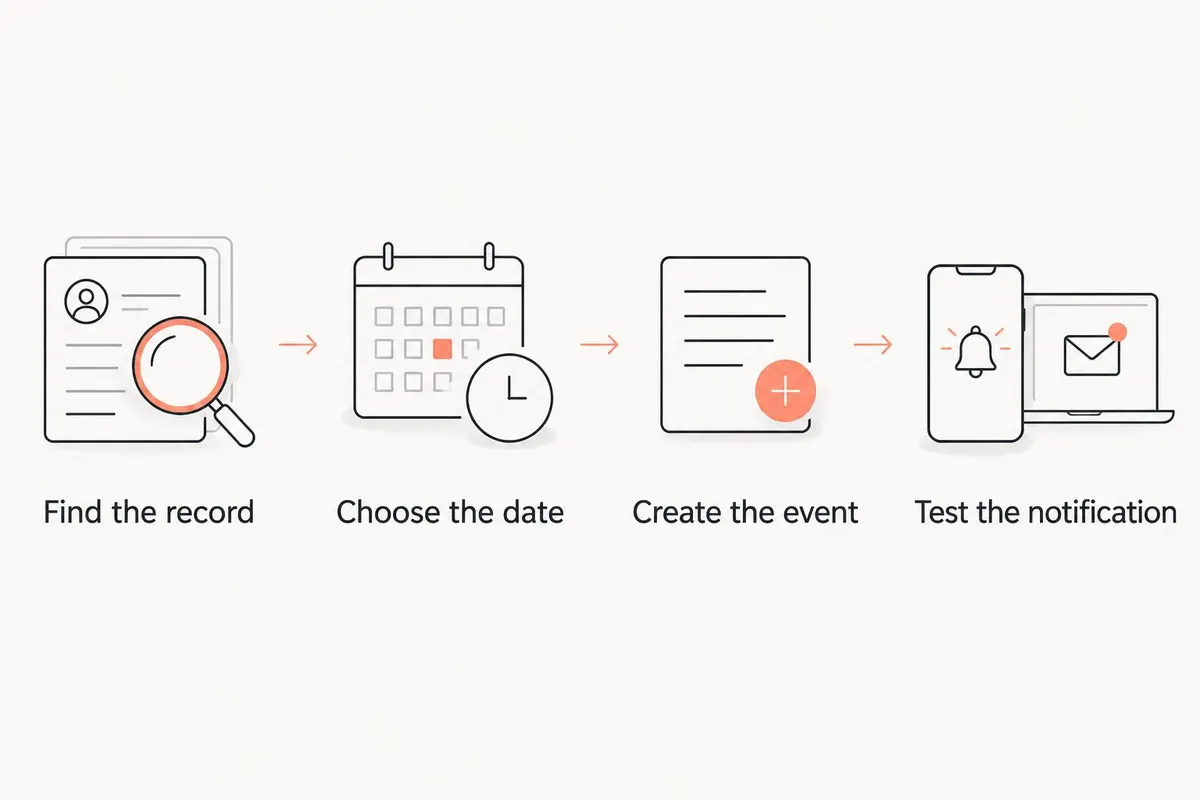
If the test fails, fix delivery before adding more events. A detailed description cannot help you if the reminder never reaches the device you check.
Update reminders whenever maintenance is completed
The adjacent workflow starts after a workshop visit or a job you finish yourself. It is still manual: recording maintenance does not update the calendar through the steps in this guide.
- Record the completed work. Update the vehicle’s service history with the actual completion date, odometer reading, and work performed. Keep the supporting receipt or document with the record.
- Review the old event. Remove an obsolete booking prompt or edit it so it no longer asks you to arrange work that is already finished.
- Calculate the next checkpoint. Use the applicable maintenance schedule and actual completed work. Do not assume every task on the previous visit now shares the same next date.
- Create or revise the next event. Update the description’s source reference and mileage information, then check its notifications.
Expected result: The vehicle record describes what happened, while the calendar describes what you need to do next.
For example, if work is completed on November 3, 2026, use that actual date in the history. If the original appointment was scheduled for November 1, 2026, do not copy the appointment date into the service record as though it proves completion.
When a repeating event makes sense
Use Does not repeat in the Google Calendar event editor to choose a repeating schedule only when a fixed recurrence matches the task. A recurring “review vehicle paperwork” checkpoint is different from asserting that a particular service must happen at that interval.
Best for predictable review habits: repeating calendar events reduce repeated setup. Their drawback is that later events can retain an outdated task, date pattern, or description. After early, delayed, or different work, review the series rather than trusting it unchanged.
Troubleshooting
The event exists, but no notification arrives
Open the event and confirm it has a notification, then check device and browser permissions. Also check settings such as Do Not Disturb that suppress alerts. Repeat the temporary test before relying on the maintenance event.
The reminder appears on the wrong account
Check the calendar assigned to the event and the account active on your phone. An event saved to a work calendar will not become a personal-calendar event just because both accounts are open in your browser.
You receive duplicate reminders
Look for two separate events for the same task, then inspect the notification settings on the remaining event. Multiple notifications on one event are different from duplicate events. Keep the intentional prompts and remove the accidental ones.
A service record changes, but the event does not
Edit the calendar event yourself. This workflow does not synchronize record changes, so a corrected date, new mileage reading, or revised service recommendation needs a corresponding calendar review.
Mileage reaches the service threshold before the date
Follow the applicable maintenance schedule rather than waiting for the calendar alert. Bring the event forward or book the work as appropriate, then revise the next checkpoint to reflect your current driving pattern.
Customize your workflow
For several vehicles, use a consistent nickname at the start of every event title. Keep the same nickname in your vehicle notes so a reminder is easy to match to the right history.
For a shared household, choose who updates the service record and who handles booking. Sharing a calendar helps people see the plan, but it does not establish that somebody completed the work.
For your remaining 2026 tasks, add reminders gradually. Start with documented deadlines and known maintenance checkpoints, not a long list of generic service intervals. Review the next event whenever you add a meaningful service record.
FAQ
How do I set up Moterno Google Calendar reminders?
Use a manual handoff: read the vehicle’s service record, choose the next applicable date, and create a Google Calendar event with a notification. This guide does not establish a native connection or automatic synchronization.
Does this workflow automatically sync service history?
No, this workflow keeps the service record and calendar separate. You must update the calendar when a maintenance date, mileage checkpoint, or completed service changes.
Can Google Calendar remind me when my car reaches a certain mileage?
Not through this workflow. Put the mileage threshold in the event description and use the calendar notification as a prompt to check your actual odometer reading.
Should I use an event or a repeating reminder for maintenance?
Use an event with a notification for a specific booking, appointment, or maintenance checkpoint. Use repetition only when the recurrence fits the task, and review the series after completed work.
Where should I keep receipts and completed service details?
Keep completed service details and supporting documents in your Moterno vehicle record. Use the calendar description for the next action and a reference to the supporting record.
Can my partner receive the same maintenance reminders?
A shared Google Calendar can make maintenance events visible to your partner. Check sharing permissions and test notifications on each person’s device rather than assuming alerts are identical.
What should I do after the workshop finishes the service?
Record the actual completion date, mileage, work performed, and supporting receipt in the vehicle history. Then review the old reminder and set the next checkpoint from the applicable maintenance schedule.
One last thing
A calendar event records an intention, not a repair. Keep that distinction in your titles: “Book service” before the job, a confirmed appointment when arranged, and a completed service entry only after the work happens. Your future self—and a future buyer—will have a clearer history to read.