

How to import your existing service history
Bring in the history you already have: invoices, receipts, photos, PDFs, a ZIP of them, or a CSV from a spreadsheet. Moterno suggests entries, and you approve them before anything is saved.
Gather your files
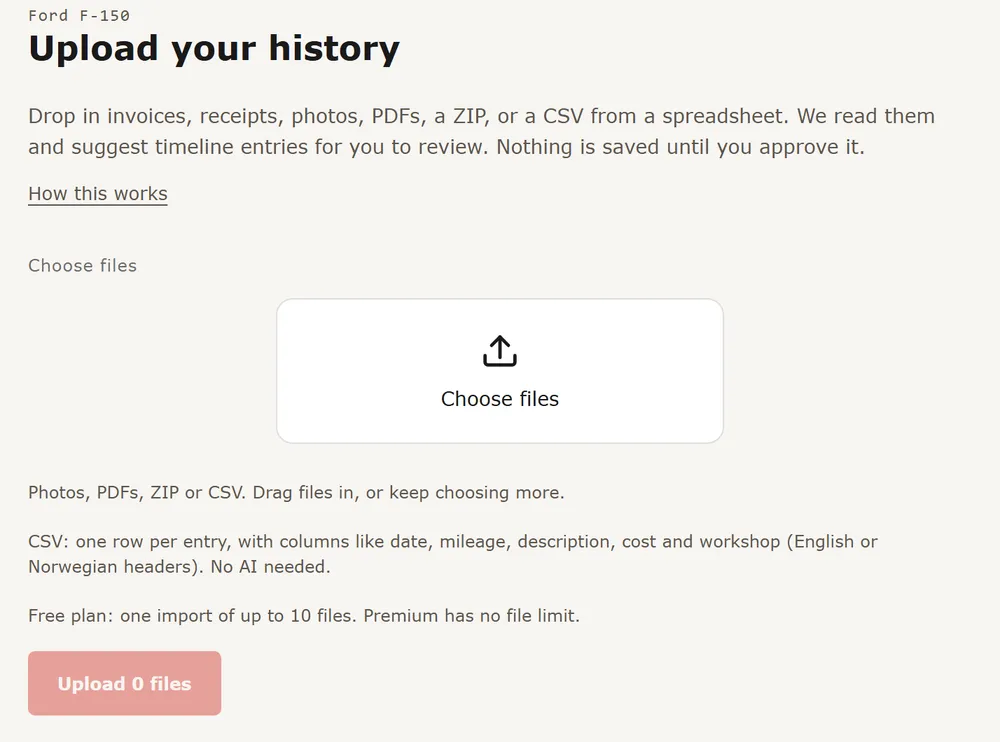
Photos, PDFs, a ZIP, or a CSV. For a CSV, use one row per entry with columns like date, mileage, description, cost and workshop (English or Norwegian headers). A CSV needs no AI.
Open Upload your history
On the vehicle, open the menu in the top corner and choose Upload your history. It is also linked under the AI interpret tab when you press Add event.
Choose files and upload
Press Choose files (or Take a photo) and add as many as you need, then press the upload button, which shows the file count. Keep the page open until the upload finishes. Reading continues afterwards and the page updates by itself.
Review before anything is saved
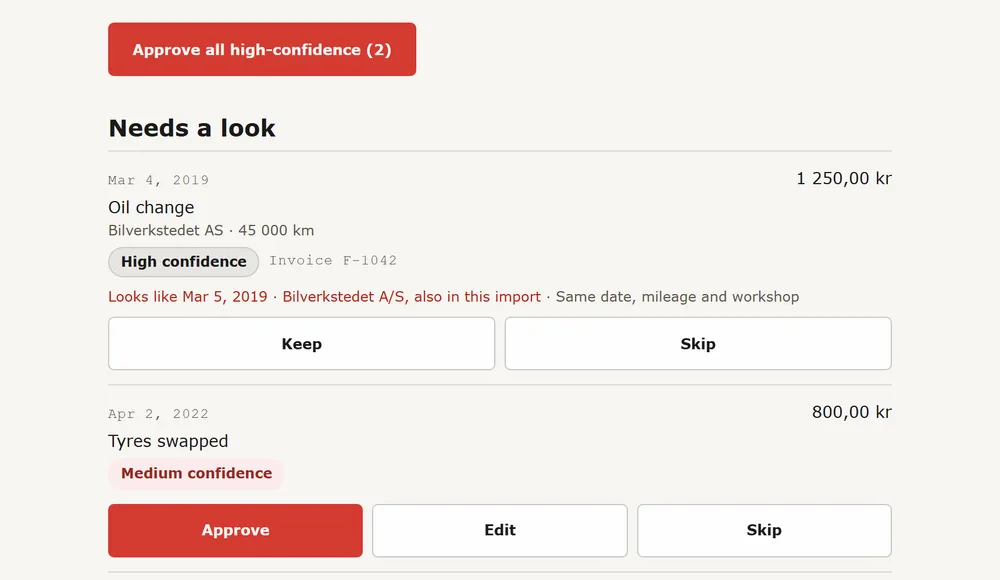
Entries are sorted into Ready to approve and Needs a look. Press Approve on the ones that are right, Edit to fix one, or Skip to drop it. Approve all high-confidence does the safe batch in one go, after asking you to confirm. If an entry looks like one you already have, you can Keep it or Merge it, which skips it and attaches its document to the existing entry.
Open the timeline
When every entry is handled, press Open the timeline. Approved entries are there, in date order, and you can edit or delete them later.
Free: one import of up to 10 files. Premium: no file limit (the daily AI limit still applies). After your free import, more history needs Premium, or you can add entries one at a time, which is free.