

How to log a service, with parts and receipts
Logging a service by hand is free, and always will be. Receipt scanning is a Premium extra, so it is covered at the end.
Open Add event
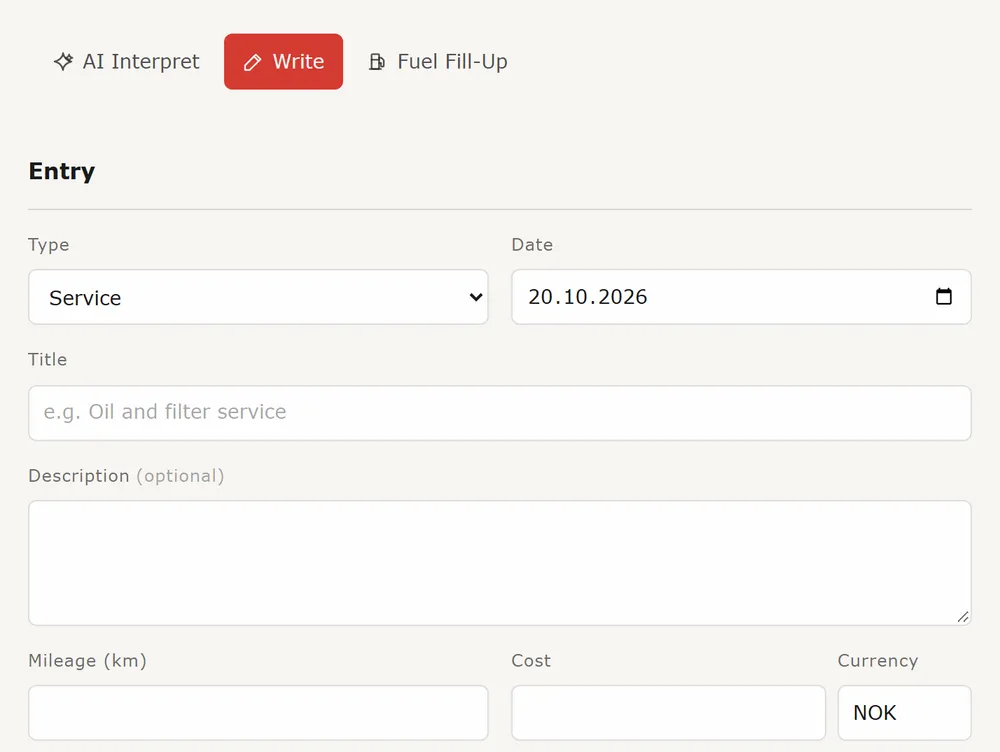
Open your vehicle and press Add event at the top. You land on a panel with three tabs: AI interpret, Write and Fuel fill-up. Choose Write.
Fill in the entry
Pick the Type (for example Service or Repair), the Date and a Title such as "Oil and filter service". A short description, the Mileage and the Cost are optional, so add what you have. Under Who can see this entry you choose Private, Followers only or Public. The workshop, and linking the job to a reminder, are on the full form: open the entry later and edit it, or press Mark done & log entry on a reminder.
Add the parts
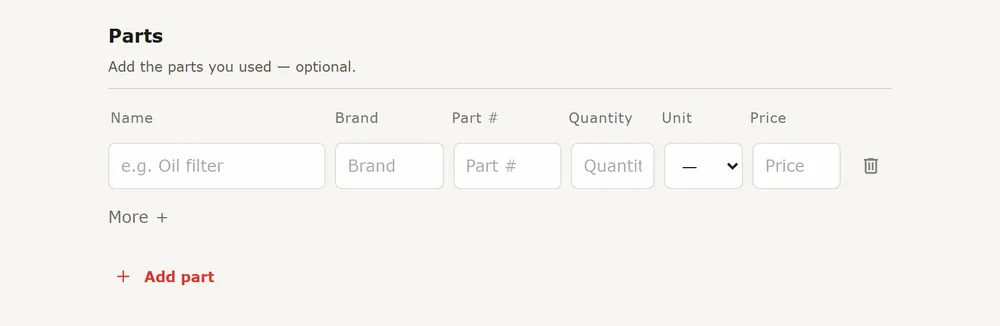
Under Parts, press Add part and fill in the name, plus brand, part number, quantity and price if you want. It is all optional. Installed parts are listed on the vehicle's page, and on a later entry Use the same parts copies them over. If you replace a part, you can mark the previous one as removed.
Attach receipts and photos
Add photos on the entry itself. For a receipt or invoice, use the Documents tab: press Add document and pick the entry under Attach to an event. A Documented mark then shows on that entry.
Save
Press Add event. It lands in the Timeline, in date order.
Premium: scan instead of typing
With Premium, the AI interpret tab reads photos, PDFs or a ZIP of them and suggests entries. You review each one, and nothing is saved until you click save. Without Premium that tab simply keeps your files as documents on the vehicle, and you write the entry yourself as above.
- Have a stack of old invoices? See the guide on importing your history.